
Imagine a crisp autumn morning. The sun streams through your window, illuminating dust motes dancing in the air. You’re sipping a warm cup of coffee, and the blank canvas of your digital art software beckons. You’ve been wanting to dive into digital art for ages, but the cost of professional equipment always seemed like an insurmountable barrier. Then you stumbled upon the Wacom One 14. Could this be the answer? A gateway to your creative dreams that doesn’t break the bank? That’s precisely what we’re going to explore in this comprehensive Wacom One 14 review. We’ll dissect its features, weigh its pros and cons, and ultimately decide if it’s truly a drawing tablet fit for beginners, or just another piece of tech destined to gather dust. Getting started in digital art can be intimidating, trust me, I remember fumbling around with my first tablet! (It was HUGE and clunky).
The world of drawing tablets can feel overwhelming. So many brands, so many features, and a price range that spans from pocket change to a small car. For a beginner, knowing where to start can be a real challenge. The Wacom One 14 enters the scene promising simplicity, affordability, and the trusted Wacom name. But does it deliver on that promise? We’ll be taking a close look at the pen sensitivity, the screen quality, the overall user experience, and how it stacks up against its competitors in the crowded field of beginner tablets. We’ll also delve into its compatibility with different software, because let’s face it, a great tablet is useless if it doesn’t play nice with your favorite art programs. One of my friends, a budding illustrator, recently told me, “I just want something that *works*, you know? I don’t need all the bells and whistles, just something reliable!” Let’s see if the Wacom One 14 fits that bill.
We’ll also consider the long-term value of the Wacom One 14. Is it a tablet you’ll quickly outgrow, or will it serve you well as your skills develop? We’ll be examining build quality, durability, and the availability of accessories. After all, a good graphics tablet is an investment, and you want to make sure that investment pays off. I’ve seen too many artists start strong, only to be hampered by equipment that just can’t keep up. This review aims to provide a balanced and unbiased perspective, helping you make an informed decision about whether the Wacom One 14 is the right choice for your artistic journey. So, grab a cup of coffee, settle in, and let’s dive into the world of digital art with the Wacom One 14.

First Impressions and Setup
Unboxing the Wacom One 14 is a straightforward experience. The tablet itself feels surprisingly sturdy for its price point. It’s lightweight, making it easy to move around your workspace, and the matte finish is a welcome touch, reducing glare and providing a comfortable drawing surface. Inside the box, you’ll find the tablet, the Wacom One Pen, a USB-C cable, and a quick start guide. Setting up the tablet is also quite simple. Just connect it to your computer using the USB-C cable, download the drivers from the Wacom website, and you’re ready to go. The whole process took me less than 15 minutes, which is a definite plus.
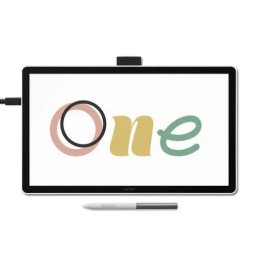
The initial setup process is crucial, and Wacom has clearly made an effort to make it as painless as possible. This is especially important for beginners who might be intimidated by the technical aspects of setting up a drawing tablet. A friend who recently switched from traditional art to digital told me, “The tech side of things is what scares me the most! I just want to create art, not troubleshoot drivers all day.” The Wacom One 14 thankfully avoids this pitfall.
The Pen Experience
The included Wacom One Pen is a lightweight and comfortable stylus with 4,096 levels of pressure sensitivity. This is a significant step up from cheaper tablets that often offer only 2,048 levels or less. The higher pressure sensitivity allows for more nuanced and expressive lines, which is essential for digital painting and drawing. The pen doesn’t require batteries, which is a huge convenience, and it feels natural in the hand.

While it doesn’t have tilt recognition like some of Wacom’s more expensive pens, the pressure sensitivity is more than adequate for most beginner and intermediate artists. I found that I could easily create a variety of line weights and shades with minimal effort. It feels very similar to drawing with a real pen or pencil, which is a huge plus for those transitioning from traditional art. One anonymous forum user commented, “The pen feel is surprisingly good for a tablet in this price range. I was expecting something cheap and plasticky, but it’s actually quite nice.”
Display Quality and Performance
The Wacom One 14 features a 13.3-inch Full HD (1920 x 1080) display. While it’s not the highest resolution display on the market, it’s more than adequate for most digital art tasks. The colors are vibrant and accurate, and the viewing angles are decent. The matte finish helps to reduce glare, making it comfortable to use for extended periods. However, it’s worth noting that the color gamut coverage is not as wide as some more expensive displays.

The display is laminated, which means there’s minimal parallax (the gap between the pen tip and the cursor on the screen). This makes drawing feel more natural and precise. However, some users have reported a slight wobble in the lines at slower speeds. I did notice this occasionally, but it wasn’t a major issue for me. Overall, the display quality and performance are impressive for a tablet in this price range. The response time is quick, and there’s minimal lag, making it a smooth and enjoyable drawing experience.
Software Compatibility and Features
The Wacom One 14 is compatible with a wide range of software, including popular programs like Adobe Photoshop, Clip Studio Paint, and Corel Painter. Wacom also offers a free trial of several creative software packages with the purchase of the tablet, which is a nice bonus.
Here’s a brief overview of compatible software:
- Adobe Photoshop
- Clip Studio Paint
- Corel Painter
- Krita
- MediBang Paint Pro
One of the key advantages of the Wacom One 14 is its versatility. You can use it for digital painting, drawing, photo editing, and even animation. It’s a great tool for students, hobbyists, and professionals alike. The tablet also supports multi-touch gestures, which can be used for zooming, rotating, and panning within your software. This adds another layer of convenience and efficiency to the drawing process.

Pros and Cons
Here’s a summarized look at the advantages and disadvantages:
Pros:
- Affordable price point
- Good pressure sensitivity (4,096 levels)
- Lightweight and portable
- Decent display quality with minimal parallax
- Compatible with a wide range of software
- Easy to set up
Cons:
- No tilt recognition
- Limited color gamut coverage
- Slight wobble in lines at slow speeds (for some users)
- No built-in stand (sold separately)
Alternatives to the Wacom One 14
While the Wacom One 14 is a solid choice, it’s not the only option available. Here are a few alternatives to consider:
- Huion Kamvas 13: A similar tablet with a slightly lower price point, but may have less reliable drivers.
- XP-Pen Artist 12 Pro: Another budget-friendly option with a smaller display and similar features.
- Wacom Cintiq 16: A more expensive option with a larger display and better color accuracy.
Who is the Wacom One 14 For?
The Wacom One 14 is ideally suited for:
- Beginner digital artists
- Students learning digital art
- Hobbyists looking for an affordable and reliable tablet
- Anyone transitioning from traditional art to digital art
It’s a great entry-level tablet that provides a good balance of features and affordability. It’s not the most powerful or feature-rich tablet on the market, but it’s more than adequate for most beginner and intermediate users. If you’re looking for a tablet that will help you learn and grow as an artist without breaking the bank, the Wacom One 14 is definitely worth considering.
Final Verdict
The Wacom One 14 review concludes that this drawing tablet is a solid choice for beginners. It offers a good balance of features, performance, and affordability. While it has some limitations, such as the lack of tilt recognition and the limited color gamut coverage, these are minor drawbacks compared to its overall value. The pen feels great, the display is decent, and the setup is easy. It’s a reliable and user-friendly tablet that will help you unleash your inner artist. If you’re just starting out on your digital art journey, the Wacom One 14 is a great place to begin. It provides a smooth and intuitive drawing experience that will allow you to focus on your creativity, not on technical issues. I remember when I first started, I spent more time troubleshooting than actually drawing! Thankfully, the Wacom One 14 seems to avoid that problem. It’s a great entry point into the world of digital art, and one that I wholeheartedly recommend. So go ahead, grab one and start creating!
Frequently Asked Questions
| Is the Wacom One 14 good for beginners? | Yes, the Wacom One 14 is specifically designed as an entry-level drawing tablet. It’s affordable, easy to set up, and offers a good balance of features for those new to digital art. |
| What are the benefits of using the Wacom One 14? | The Wacom One 14 allows for a natural drawing experience, improved precision compared to a mouse, pressure sensitivity for varied line weights, and compatibility with popular art software. It also fosters creative expression and skill development in digital art. |
| How do I set up the Wacom One 14? | Connect the tablet to your computer using the provided USB-C cable. Download and install the necessary drivers from the Wacom website. Follow the on-screen instructions to calibrate the pen and configure your preferences. |
| What are the potential challenges of using the Wacom One 14? | Some users may experience a slight wobble in lines at slow speeds. The color gamut coverage is not as wide as more expensive displays. The tablet does not have tilt recognition, and a stand is sold separately. |
| What are the future possibilities for the Wacom One line? | Future iterations of the Wacom One could potentially include improved color accuracy, tilt recognition, higher resolution displays, built-in stands, and wireless connectivity. These enhancements would further enhance the user experience and make the Wacom One even more competitive in the market. |
Important Notice
This FAQ section addresses the most common inquiries regarding the topic.